Collaborate in KRIS
Collaboration feature in KRIS enables real-time, co-authoring on documents filed within KRIS.
Key features include:
-
Real-Time Co-Authoring
Multiple users can work on the same Microsoft Word, Excel, or PowerPoint document at the same time. Changes made by any collaborator are reflected instantly for all participants. -
Easy Collaboration Invitations
Invite collaborators by selecting a document and clicking Copy Sharing Link to generate a shareable link or send an email invitation.
Start Collaborating on a Document
-
Upload the document to a folder in KRIS.

-
Click the Document Number or Document Subject to open the document details.
-
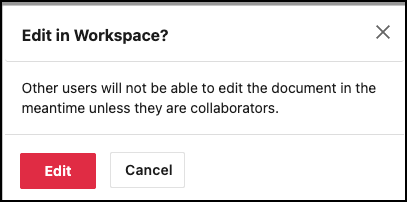
Click Edit.

-
Click Edit to confirm. The document will be imported into “Workspace” where the edits take place.
-
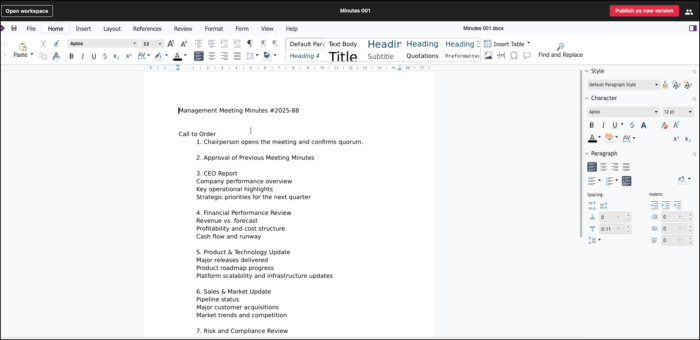
Make the required changes to the document. Changes will appear in real time for other collaborators who have the document open.
Invite Collaborators
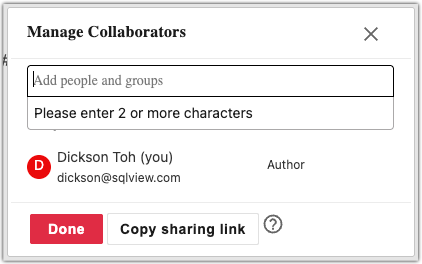
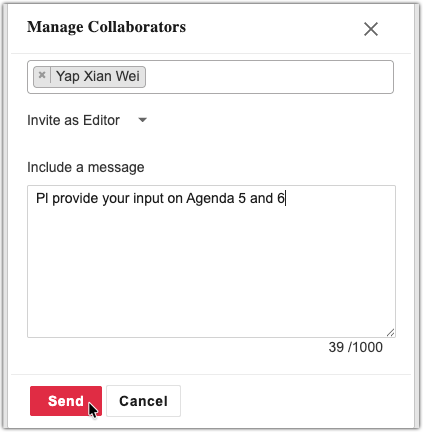
- Click on the “Manage Collaborators” icon

- Enter the name of the collaborator to search.
-
Select the appropriate invitation type.
-
Editor – Can edit the document content.
-
Viewer – Can view the document but cannot make changes.
-
- Optionally include a message.
- Click Send.
- The recipient will receive an email notification.
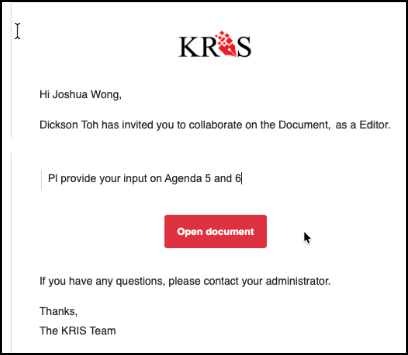
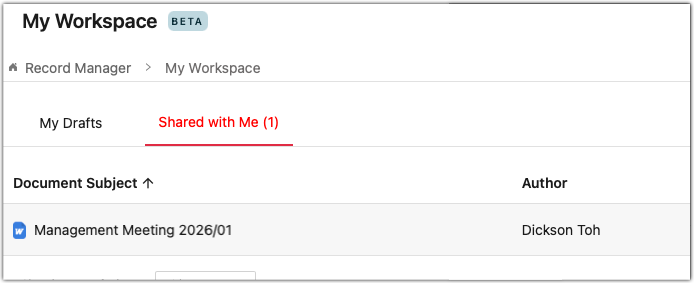
- He can edit the document by clicking on the “Open Document” button, or go to My Workspace > Shared with me, and click on the document link.
Resume Editing a Document
- Log in to KRIS Web portal.
- Click My Workspace.
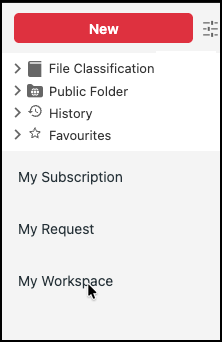
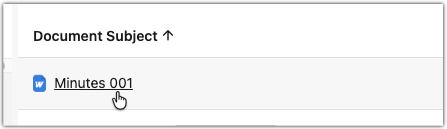
- Select the document you want to continue working on by clicking on the subject.
Publish the document As New Version
Once all the edits are completed, the author is now ready to update the copies in KRIS to the latest version.
- Open the document that you want to update by clicking on the subject.
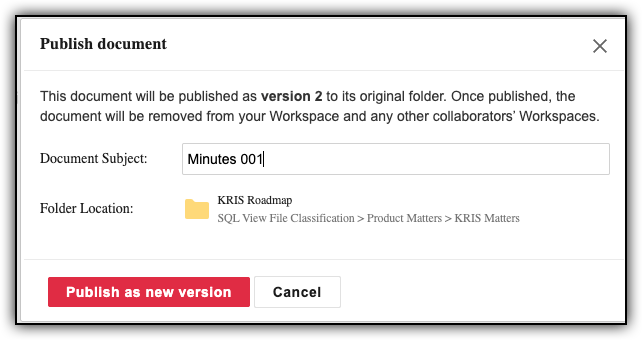
- Click Publish as new version.
.
- Change the document subject if necessary.
- Confirm by clicking Publish as New Version again.
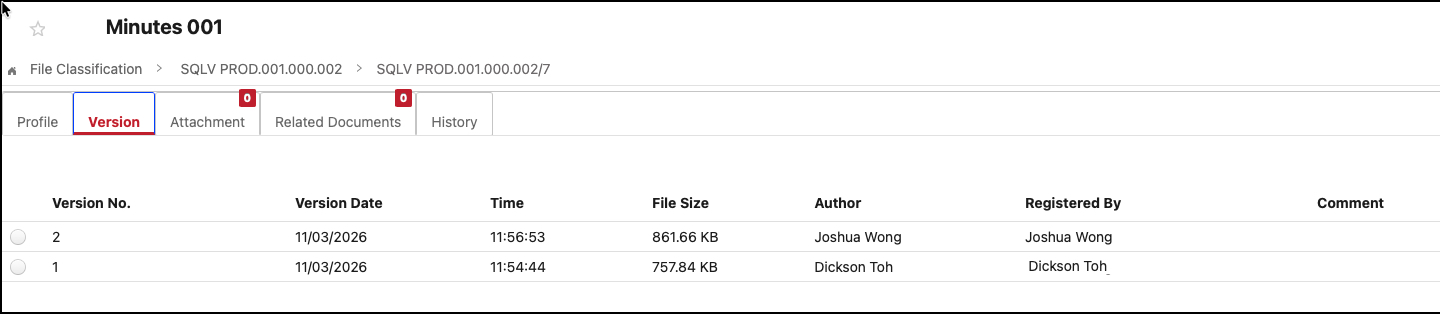
- A new version is now published into KRIS. You can access all the current and earlier published versions in the documents properties page.
Managing in-collaboration documents
- Log in to KRIS Web Portal.
- Click My Workspace.
- Select the document you want to stop working on by clicking on the ⋮ button and select Delete from Workspace.
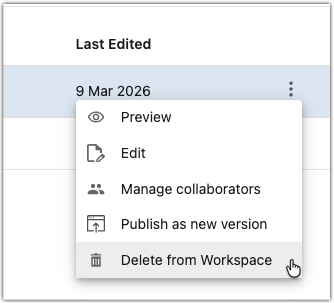
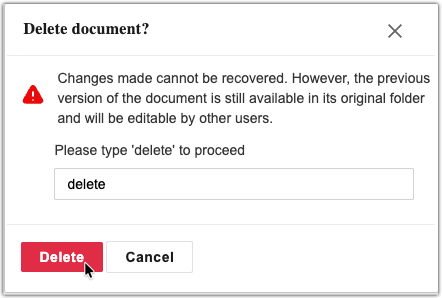
- Type delete in the confirmation box and click Delete.