
Moving an existing Folder
Using drag and drop method to move a folder
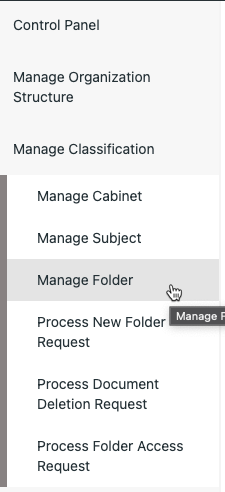
- Click on Manage Folder link under Manage Classification section.
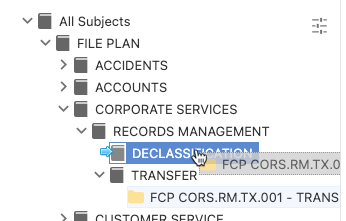
- Click on Classification Tab for e.g. Subject.
- Click on > to expand the classification.
- Click and hold on the folder to be moved.
- Drag to the target Cabinet / Subject and release the mouse button.
- Click on the OK button in the Confirmation window.

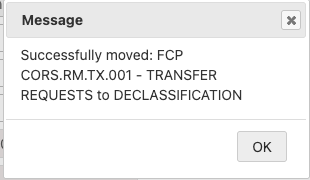
- Click on the OK button to close the Success Message window.
Using Move to method to move a folder
- Right click on the folder and select Move to… option
- Select the Cabinet / Subject the folder is to be moved to
- Click on the Save button.
- Click on the Yes button in the Confirmation window.
- Click on the OK button to close the Success Message window.