
Removing Tags
Removing Tag from a Cabinet / Subject Properties
- Login as System / User Administrator
- Click on Module Switcher at the top bar and select KRIS Administrator module.
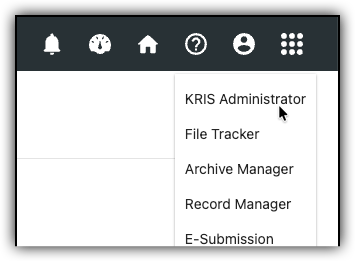
- Click on Manage Subject link under Manage Classification section.
- Expand the Subject tree view and click on a Subject.
- In the properties page, click on X icon of a tag in the Tag field.
- Click on Save button to save changes.
Removing Tag from folder properties
- Click on Module Switcher at the top bar and select KRIS Administrator module.
- Click on Manage Folder link under Manage Classification section.
- Click on Classification Tab for e.g. Subject.
- Click on > to expand the classification and select a folder.
- In the properties page, click on X icon of a tag to be removed in the Tag field.
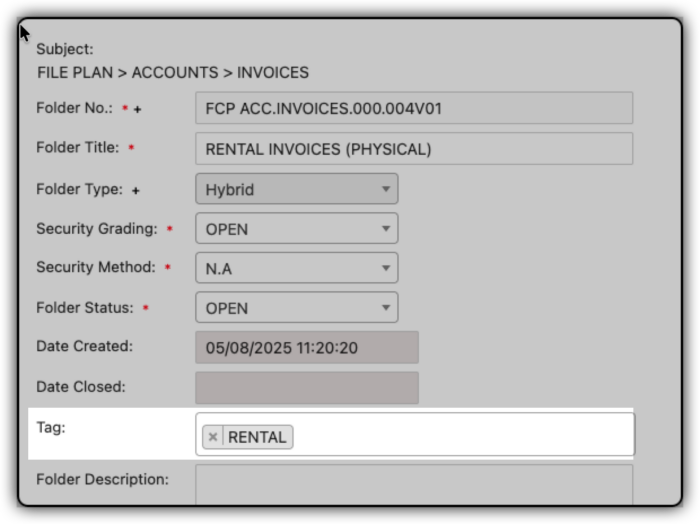
- Click on Save button to save changes.
Removing Tag from multiple cabinets / subjects / folders
- Input the search term in the Search Box and hit “Enter“.
- The system will do an universal search across the system and display all the items that match the search term. In the Search Result – folder section, select a few items that you want to remove tags from.
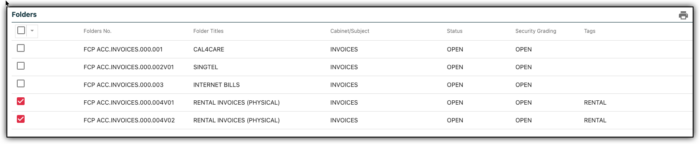
- Click on the dropdown icon beside Checkbox header and select Remove Tags option.
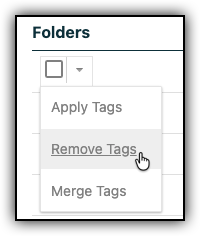
- Click on X icon of the tag to be removed in the Tag field.
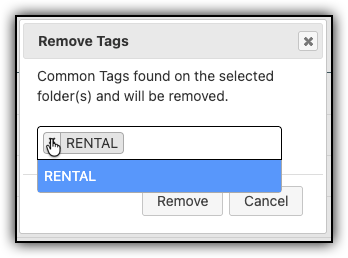
- Click on Remove button. The tag is removed from the selected folders.