
Finding Folders by Using Advanced Search
Advanced Search gives you the power and flexibility to find any documents or folders you want. If you want to look to look for folders with more specific search criteria, you can utilise the Advanced Search.
To search for folders with specific search criteria,
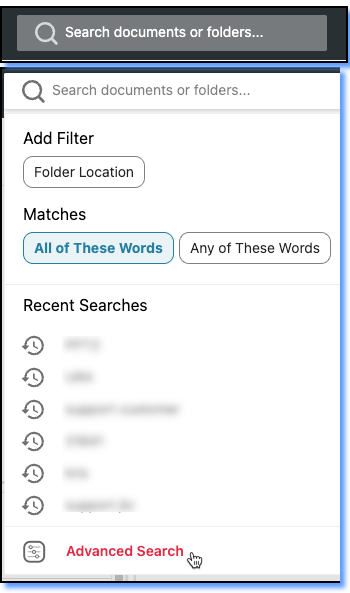
- Click on “Search documents or folders…” box.
- Click on the Advanced Search from the drop down menu.
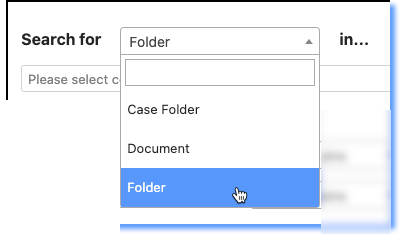
- Click on the Search for drop box down and select Folder..
- Do the following steps if you want to look for folders under certain classification for e.g. Product
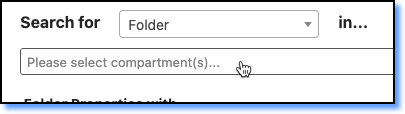
- Click on the Compartment drop down field.
- Select one or more classifications from the File Classification Plan
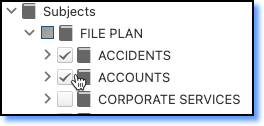
- Click on the Compartment drop down field again to hide the File Classification Plan.
- Click on the Compartment drop down field.
- Click on Search Parameter field in the Folder Number field to change how you want the search to be done.
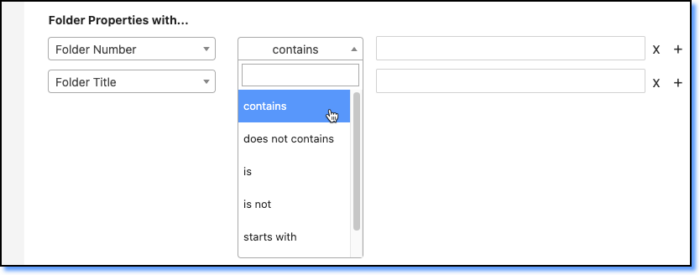
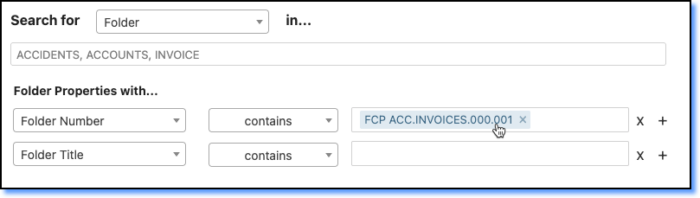
- Enter the search term in Folder Number if you want to search based on Folder ID.
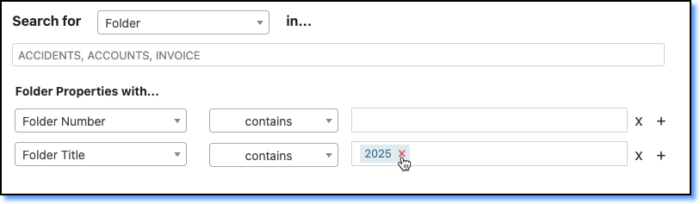
- Enter the search term in Folder Title if you want to search based on Folder Name.
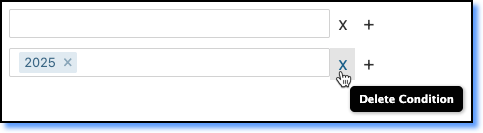
- Click on the Add new Condition icon to include additional search criteria.
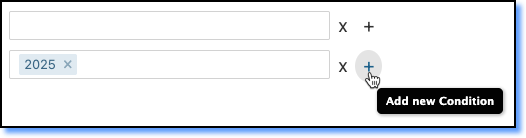
- Click on the Delete Condition icon to remove a condition.
- Click on the Search button.
Refining Search Result through Faceted Search
Faceted search uses folder properties as criteria to refine the search results. You will get specific and relevant options to filter the result page. This makes faceted search an easy and practical way to search for folders quickly.
Faceted search also makes search results more relevant by describing the context to the list of search result without any effort from your side. 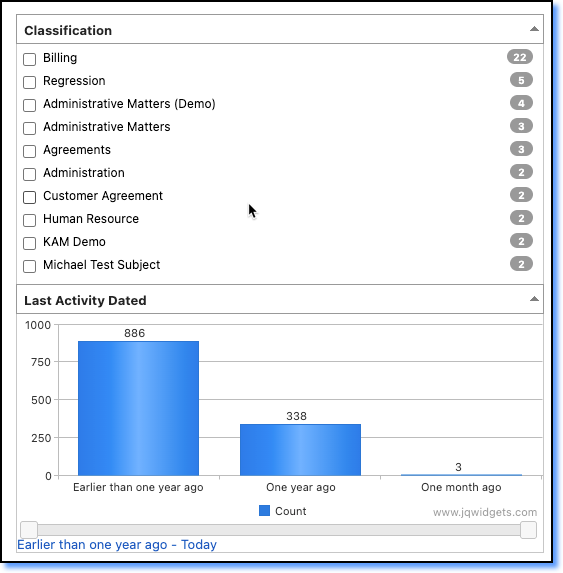
Available Facets that are generated from the Folder Search Result,
- Classification – List of top 10 classification that most folders listed in the Search Results.
- Folder Category – Folder Categories like Subject Folders or Case Series.
- Folder Type – Different Folder Type such Electronic, Physical or Hybrid folders.
- Security Grading – List of Security Grading found in the search result.
- Subject Officer – List of top 10 Subject Officers discovered from the search result.
- Last Activity Dated – Date Range of the Last Activity Date.
Filter the search result by selecting the metadata in the Facets,
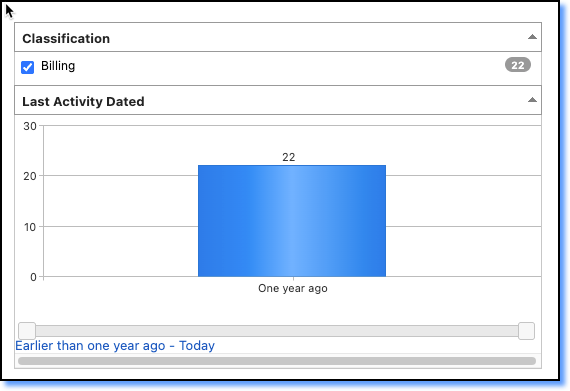
Similarly, you can also remove any conditions by unchecking filter tag under the Filter by section.