
Filing Documents
The fundamental of filing documents to the KRIS Document Management System (DMS) is not only to capture the content of the document but also the information about this document which refers to metadata in KRIS.
The metadata allows the records to be found by relevant criteria, brings similar records together and also helps to distinguish documents from one another.
By classifying the uploaded document into the correct file classification and defining all relevant metadata, these gives you the full context of the uploaded document on its value and purpose.
Filing Document via Drag and Drop
There are several filing methods in KRIS and this video will show you the most commonly used filing method – “Drag and Drop“,
Filing Document via Profile Form
- Click on New > Electronic Record on Action Menu or New Document button on the Dashboard.
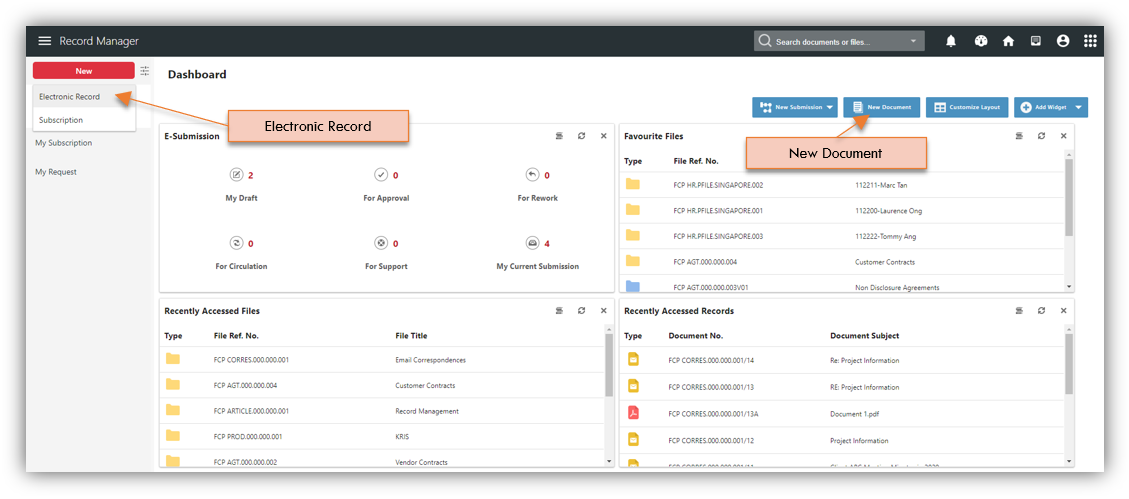
- A profile form for defining the metadata will be displayed. Click on the Upload icon at the Document To be Filed field and select a document from your system.
- Click on the Lookup icon in the Folder field to look for folder to file.
- Most of the below mandatory fields will be auto populated:
- Document Subject – is auto populated with filename of the selected document.
- Security Grading – refers confidentiality of document which is auto populated based on the folder you selected in Folder field
- Author – refers to the creator of the selected document and it is auto populated with your user ID and name.
- Designation – is auto populated with the default role that is configured for the Author. You can change the designation if the Author has multiple roles.

- If the document is password protected, declare it by clicking on the “This is a password protected document” checkbox and enter its password. The system will then remove its password before uploading the document to facilitate long term preservation.
- It is optional to enter more information in the following fields:.
- Case Reference – a list of sub folders (if any) found under the folder field.
- Keywords – allows the user to enter additional words to facilitate searching
- Synopsis – allows the user to enter a short summary of the record.
- Document Date – is auto populated with the current system date if it is not entered.
- Click Save button to upload the document.