
Managing Subscriptions
KRIS allows the user to sign up for subscriptions on their topic of interest across multiple files/folders so that they can receive alerts when there is an activity within these files. You may subscribe yourself as well as other users.
An example of usefulness in an organisation is where your function is as a Service Desk Staff. Your CRM system automatically creates a record into KRIS whenever a user raises a new service request. You & your team can be notified when a New Document is created so that you can promptly act on it.
Creating a Subscription:
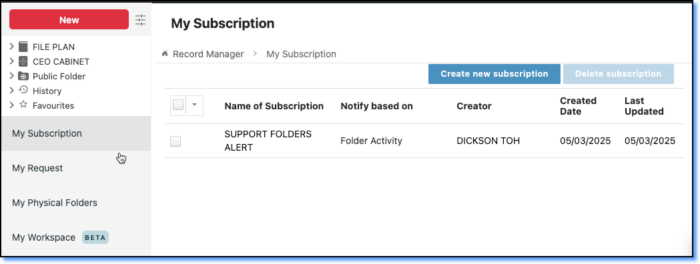
Start by clicking the “My Subscription” on the left side pane. If you have any subscriptions (including those which others has subscribe to on your behalf), they will be listed here.
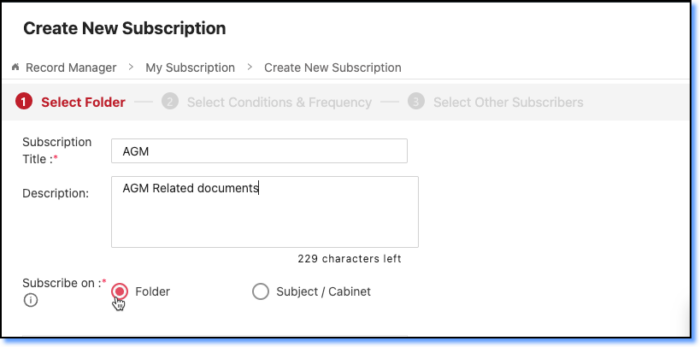
Step 1: Specify the subscription title and select relevant files.
- Click “Create New Subscription“.
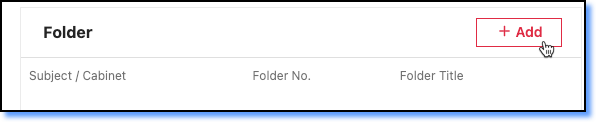
- Enter a description for the subscription, and proceed to click “Subscribe on: Folder” and click +Add to select relevant folders you are interested in monitoring.
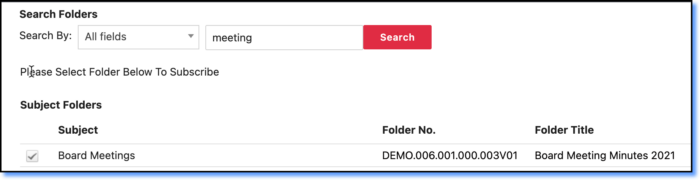
- Select the desired folders by ticking the line item, and then click “Add” when you are done.
- You may select multiple folders. The criteria section enables searching for specific folders.
- Click “Next” to confirm your selection at this step.
Step 2: Select Conditions & Frequency
- There are 2 types of trigger options available:
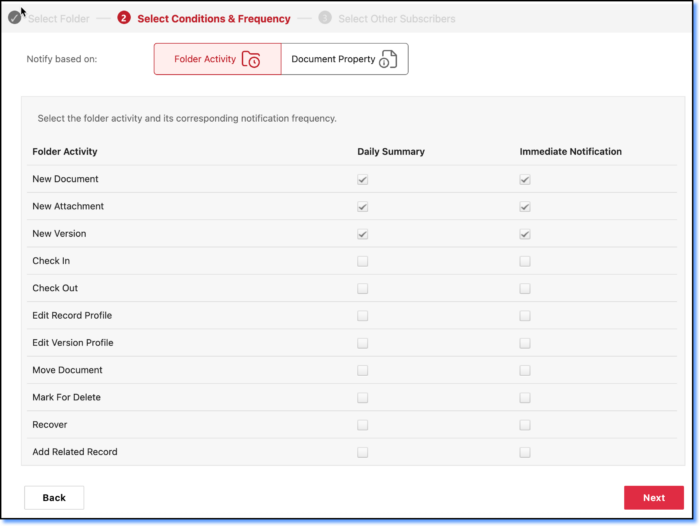
- Folder Activities: Triggers when there are any changes to the folder (e.g. New Document/Attachments/Version, Check-In/Out, Edit, Refile, Delete & Recover (see below for full list)). You can also choose to be notified when the event occurs or to receive a daily summary of all the events on that day.
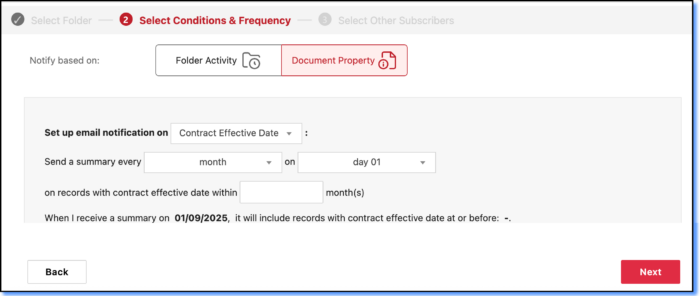
- Document Property : Triggers when the document property matches the criteria. (e.g. contract effective date has lapsed).
- Folder Activities: Triggers when there are any changes to the folder (e.g. New Document/Attachments/Version, Check-In/Out, Edit, Refile, Delete & Recover (see below for full list)). You can also choose to be notified when the event occurs or to receive a daily summary of all the events on that day.
- Click “Next” to confirm your selection at this step.
Step 3: Select other subscribers
- You can include other users in the email notification.
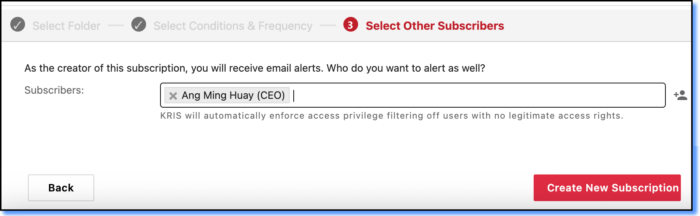
- Click “Create New Subscription” to confirm your selections & a new subscription will be created.
Updating a Subscription:
- You can only edit a subscription created by you.
- Select the subscription that you want to update by clicking on the name of the subscription and click Subscription Settings
- The following details can be updated:
- Description of Subscription Title
- Add/Remove Folders
- Change Conditions / Frequency
- Add / Remove additional subscriptions
- All steps involved are similar to Creating a Subscription.
Deleting a Subscription:
- You can only delete a subscription created by you.
- Select the subscription that you want to delete using the checkbox, then click “Delete subscription“.
- System message will prompt as below.
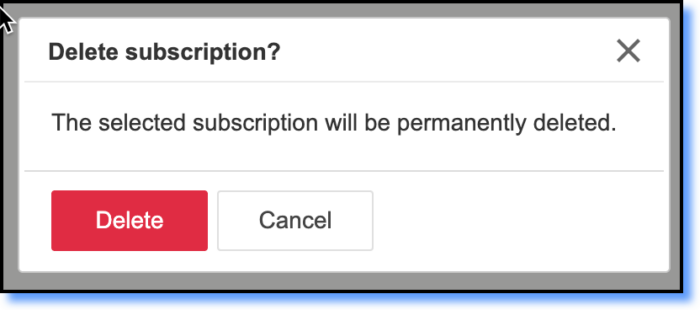
- Click “Delete” to confirm.