Checking Out / In Documents
KRIS provides document control features that allow users to reserve, lock, and manage document edits. These controls help prevent conflicting changes when multiple users are working on the same document.
When a document is checked out, it is reserved for editing by a specific user. While the document is checked out and locked, other users cannot modify it.
Check Out a Document
Use this option when you want to download the document and edit it locally.
-
Click the Action icon (⋮) next to the document.
-
Click Check Out.

-
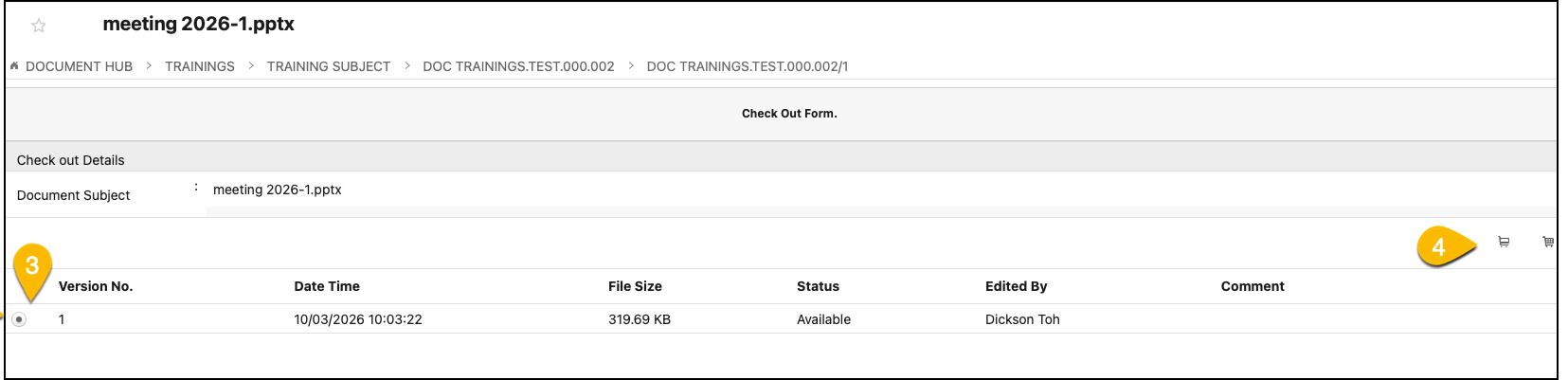
Select the desired document version using the radio button.
-
Click the Check Out icon. If you want to lock the document and prevent other users from making changes, select Check Out and Lock instead. Only the user who locked the document can check in a new version or unlock it with no changes.
-
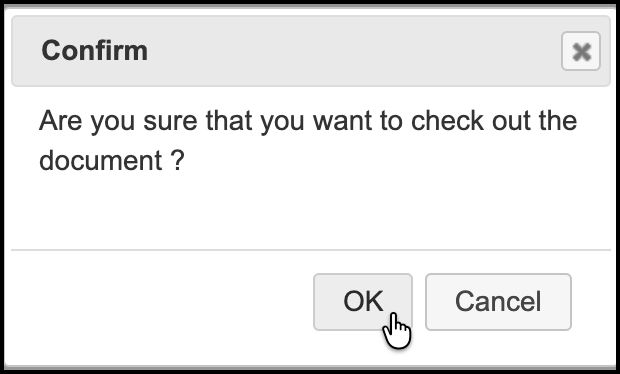
Click OK to confirm.
-
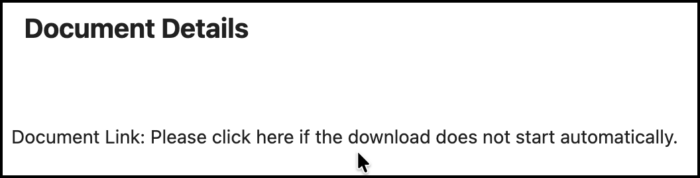
Click the download link provided to download the document and begin editing.
- The document status is now changed to Checked Out.

Check In a Document
After making changes to a checked-out document, check it back in to update the document in KRIS.
-
Locate the checked-out document and click the Action icon (⋮).
-
Select Check In.

-
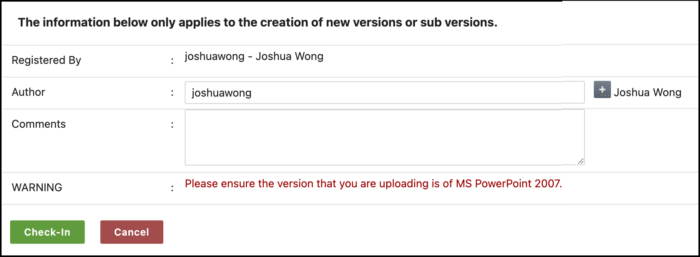
Enter comments describing the changes (optional but recommended).
-
Click Check In.
-
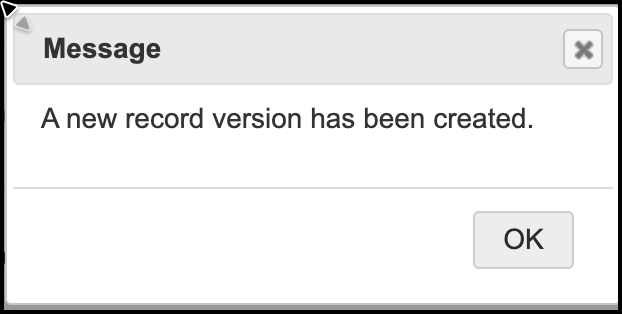
Click OK to close the confirmation message.
-
The document status is now changed to Available. The Version No. column is also reflects the latest version number.

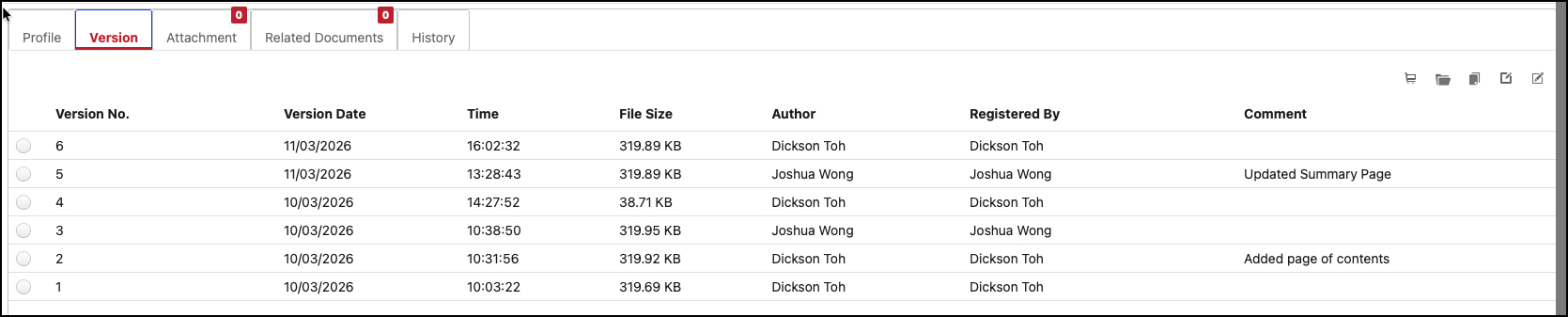
- To view the current version and access all previous versions of the document, click the Version tab on the document profile. For more info, refer to Managing Versions for a Document